Help

Feature Guide

What each event feature actually does, where people see it, and what happens when you turn it off. This is the same text as the in-console guide — there is one source.

Community

Community

What it does

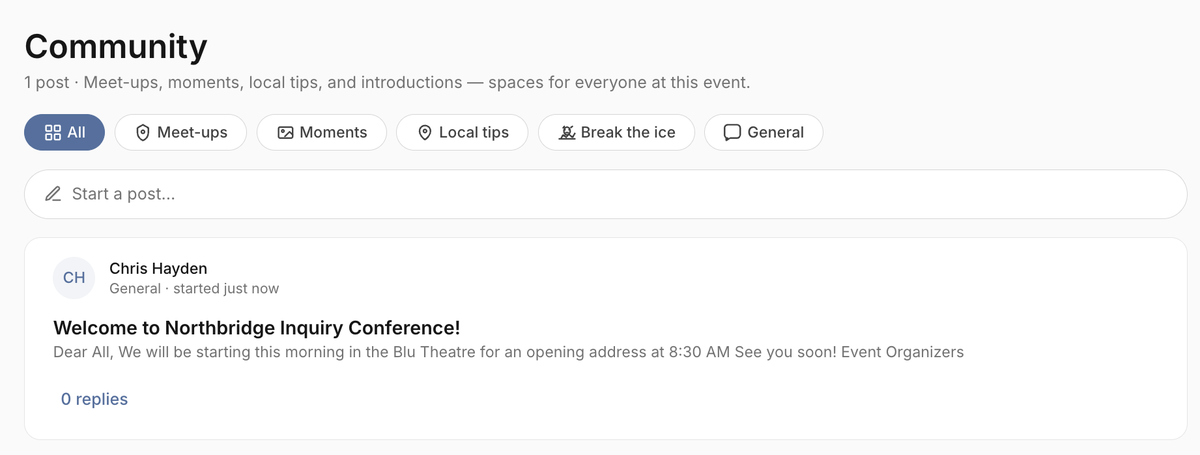
Community is the shared event board: attendees post threads and reply in public channels, not in private chats. Anyone on the roster can post; organizers can edit or delete threads and replies. Unlike Messages, there is no in-thread Report control on Community posts — organizers moderate by editing or deleting. The parent toggle is the master gate: turning it off also turns off every Community channel.

The experience

Attendees open it from the Community tab in the event app, and from a Community link on a session page when the feature is on. Channel pills filter the feed; a composer sits above the posts. Organizers use the same board — there is no separate Community inbox.

Good to know

Community is on by default and included on every plan. Turning it off hides the tab immediately; existing posts stay in the database and return if you turn it back on. Meet-ups, Moments, Local tips, Ice-breakers, and the General board all require Community to be on.
Meet-ups

What it does

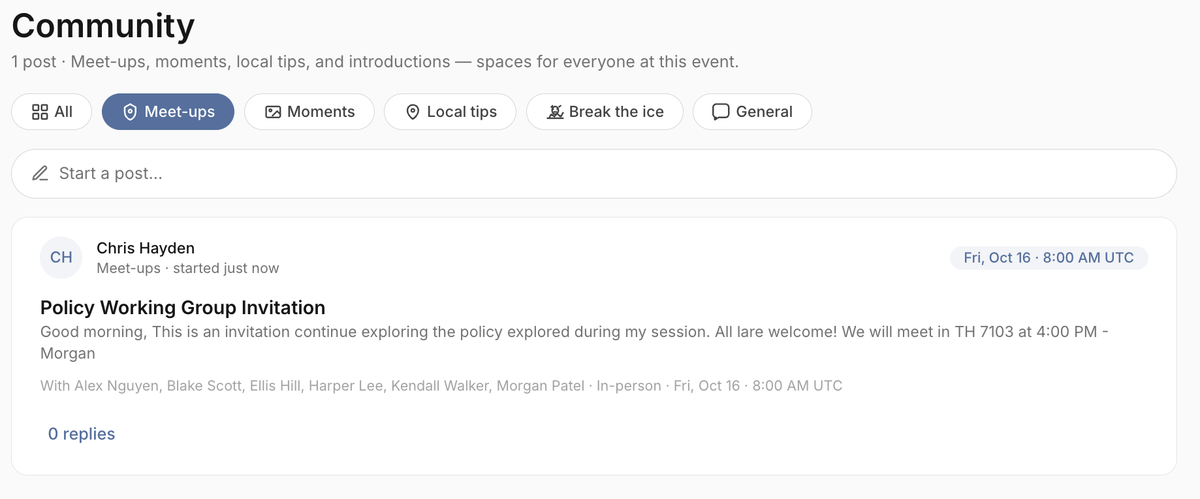
Meet-ups is the Community channel for proposing an in-person or virtual gathering. A post needs a title, a description, or a photo (at least one), plus a format and either a named guest list or an invite to everyone. Virtual meet-ups also require a meeting URL. Notifications go to the invited people, or to the whole roster when you invite everyone.

The experience

Attendees pick the Meet-ups pill on the Community tab, then fill in format, optional start time, and who to invite. The feed shows invite scope, format, time, and the virtual link when there is one. Organizers see the same channel and can delete a post like any other Community thread.

Good to know

On by default, but it cannot run without Community. The Focused, PD day, and Talk showcase presets turn it off. Hiding the channel leaves existing meet-up posts in place; they reappear if you turn it back on.

Share your moments

What it does

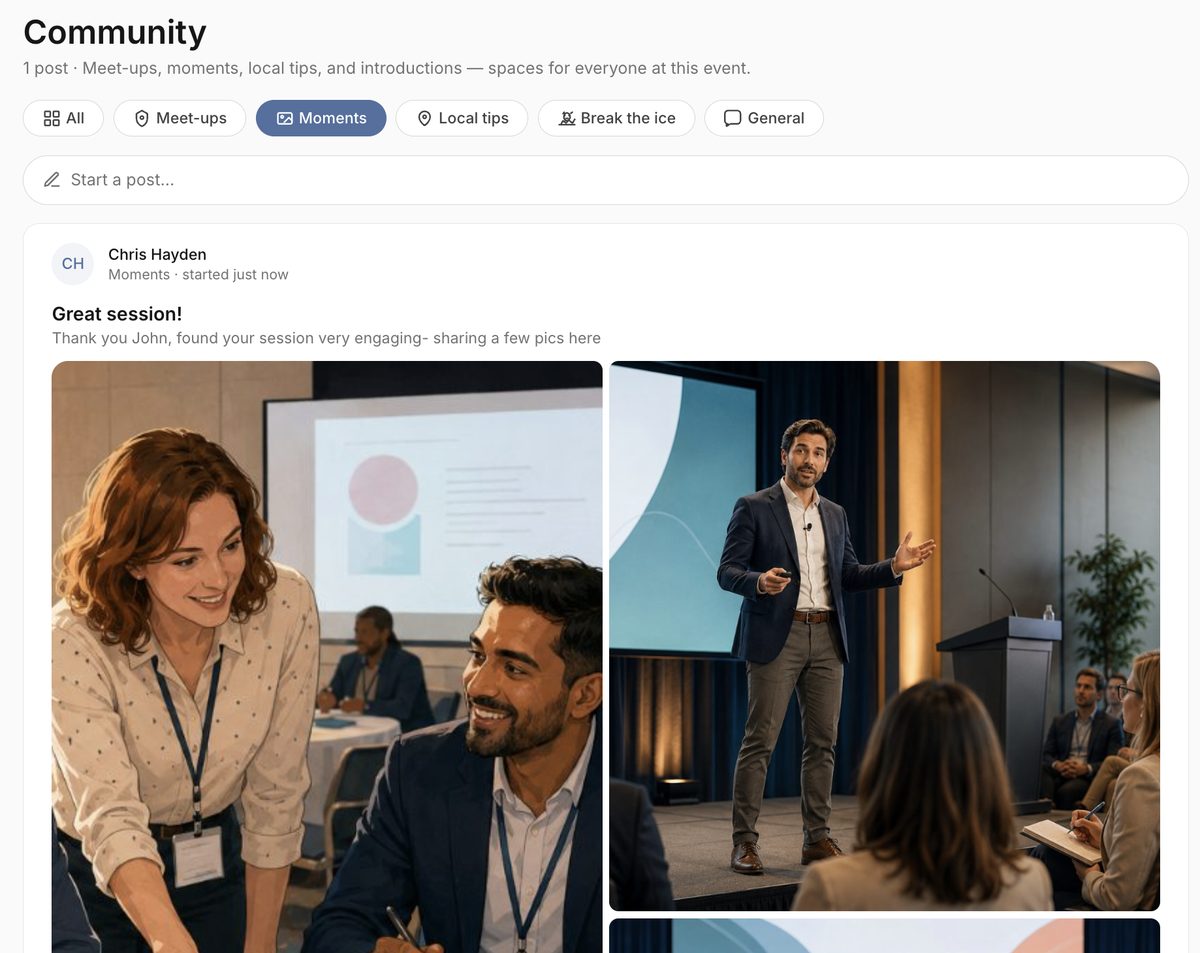
Moments is the Community photo channel. A post can be photos only, a title only, or a description only — at least one of the three is required. You can attach up to twelve images and optionally tag people who are on the roster. Images are stored on the thread and open in a lightbox from the feed.

The experience

Attendees pick the Moments pill, add a caption, tag people, and upload photos or paste image URLs. The feed shows a photo grid; tagged names sit under the post. Organizers moderate by editing or deleting the thread.

Good to know

On by default, and it requires Community. The Academic and PD day presets turn photo sharing off; Talk showcase leaves it on. Turning it off hides the channel; existing photo posts are preserved.

Local recommendations

What it does

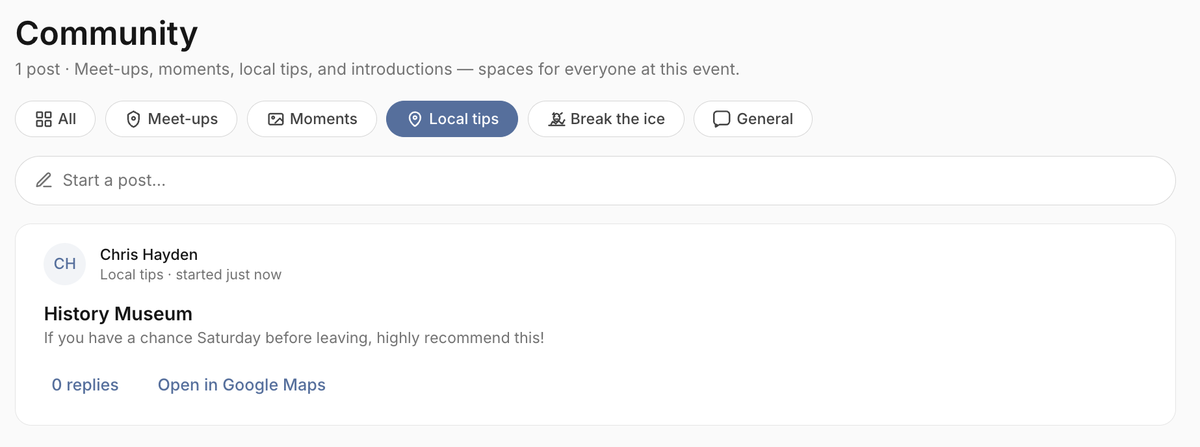
Local recommendations is the Community channel for nearby places to eat, walk, or explore. A post needs a title, a description, or a photo (at least one), and it is the only channel that stores an optional maps URL (up to 4,000 characters). There is no guest-list targeting — local tips are always event-wide.

The experience

Attendees pick the Local tips pill and can add a Maps link; a helper opens Google Maps search in a new tab. Posts with a link show Open in Google Maps on the feed. Organizers see the same channel.

Good to know

On by default, and it requires Community. The PD day and Focused presets turn it off. Hiding the channel preserves existing tips.

Ice-breakers

What it does

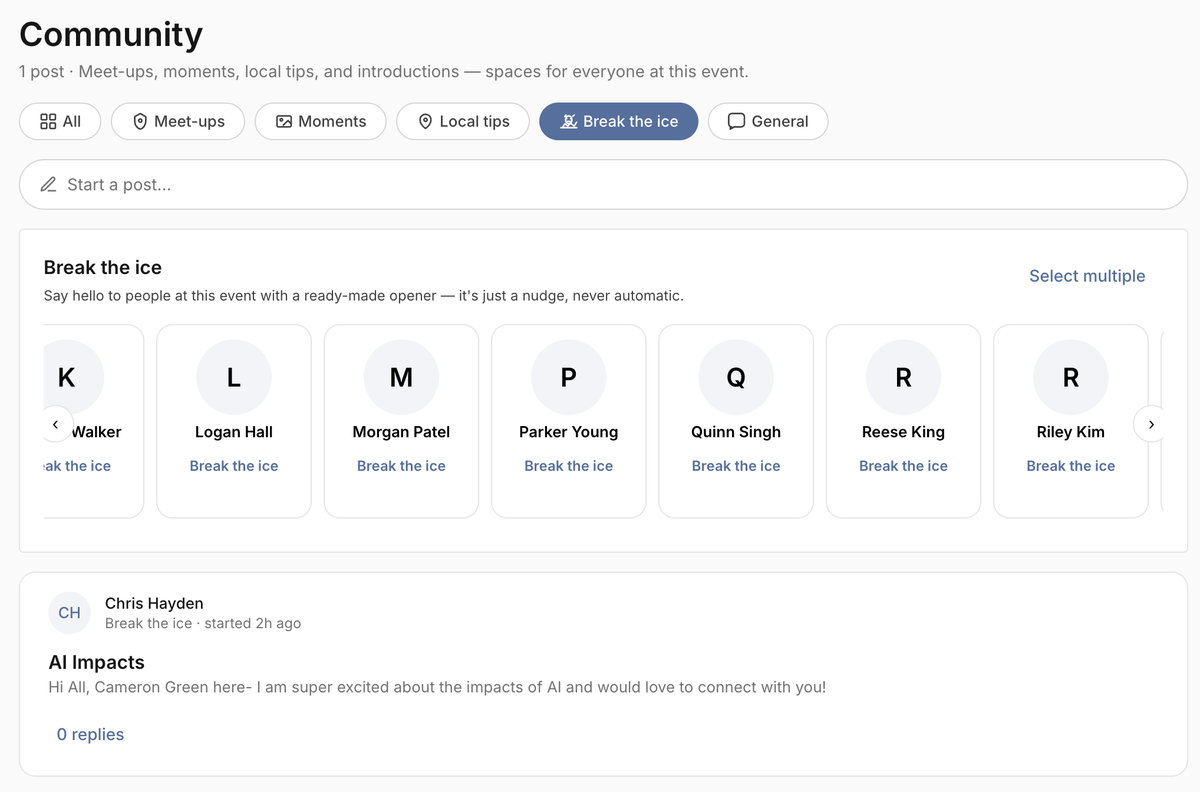
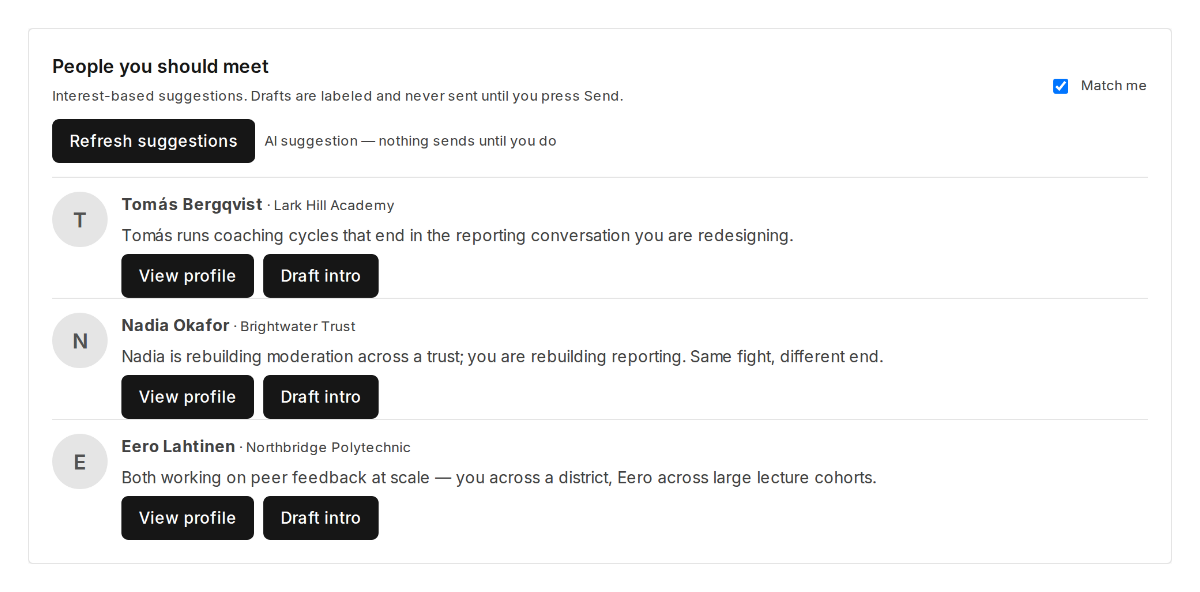
Ice-breakers is the Community channel for intros and conversation starters. Posts use a normal title and body — no extra fields. When this channel is in view, a people-discovery strip can open a prefilled direct message, which still requires Direct messages to be on.
The experience

Attendees pick the Break the ice pill on the Community tab. The empty state nudges intros; the carousel above the feed is a shortcut into Messages. Organizers can seed an ice-breaker thread during setup.

Good to know

On by default, and it requires Community. The Focused preset turns it off. Existing ice-breaker posts stay if you hide the channel. The carousel cannot start a chat if Direct messages is off.

General board

What it does

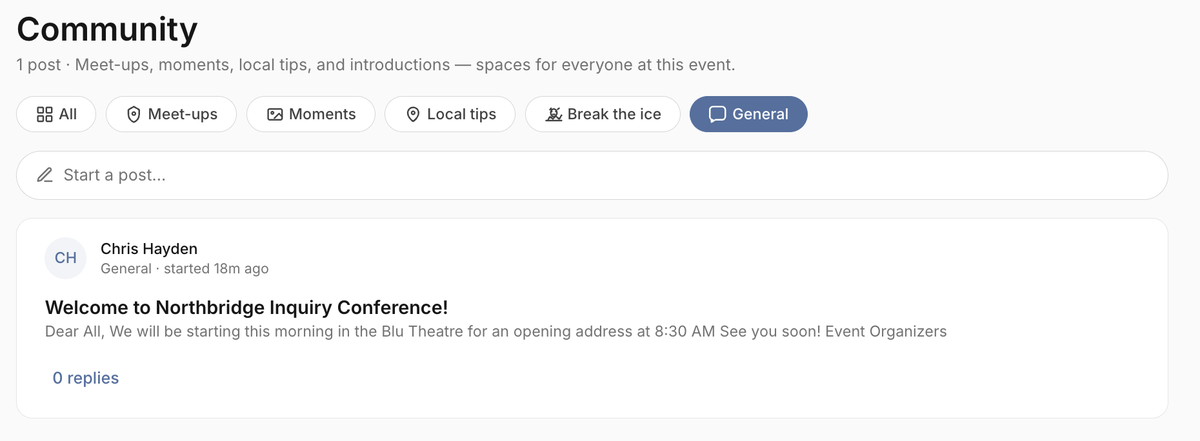
The General board is the open Community channel for posts that do not fit a special channel. It is the default when a channel is omitted, and the only channel with audience targeting: everyone, a session, a track, or named people. Targeted posts are hidden from people outside that audience; the author and event managers still see them.

The experience

Attendees pick the General pill and use Post to to choose everyone, a session, a track, or specific people. The feed shows an audience pill such as To: session or To: N people. Organizers always see targeted posts.

Good to know

On by default, and it requires Community. Presets that keep Community on also keep General on. Turning it off hides the board; existing posts are preserved.

Messaging

Direct messages

What it does

Direct messages are private one-to-one chats between two people on the roster. Both people must be visible in the attendee directory or a new thread is refused. The recipient’s Who can message me setting can block new conversations (organizers are exempt). Sends are rate-limited to 60 messages per person per minute.

The experience

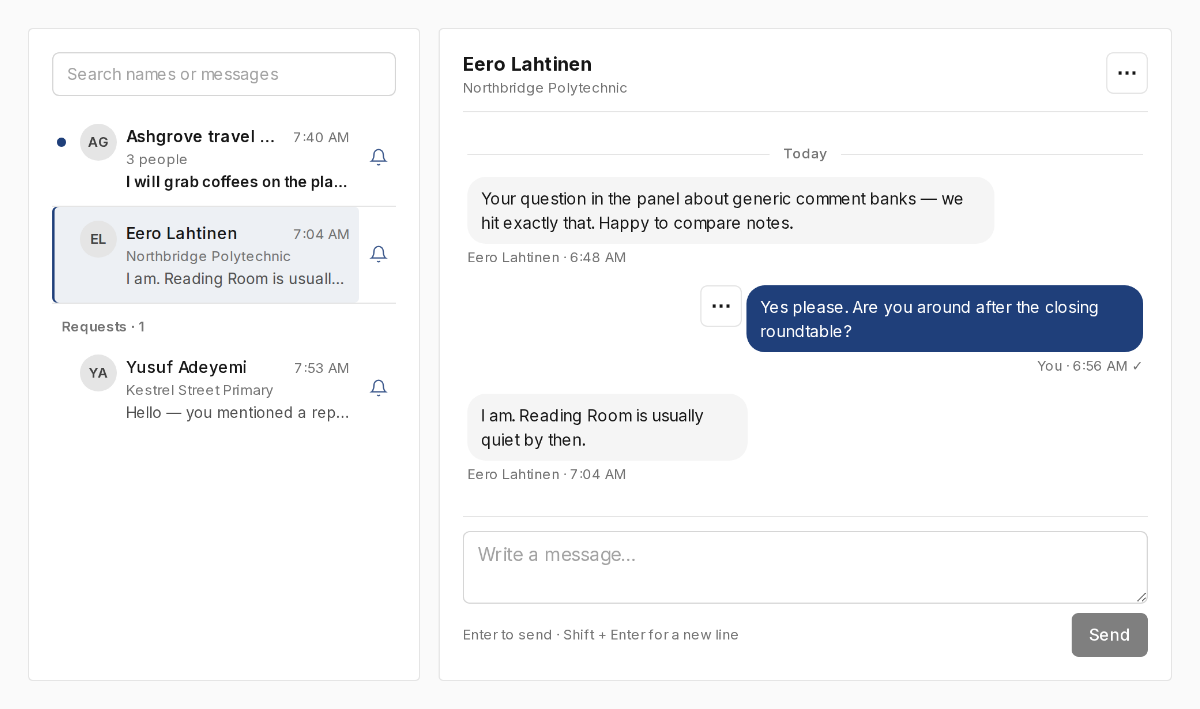
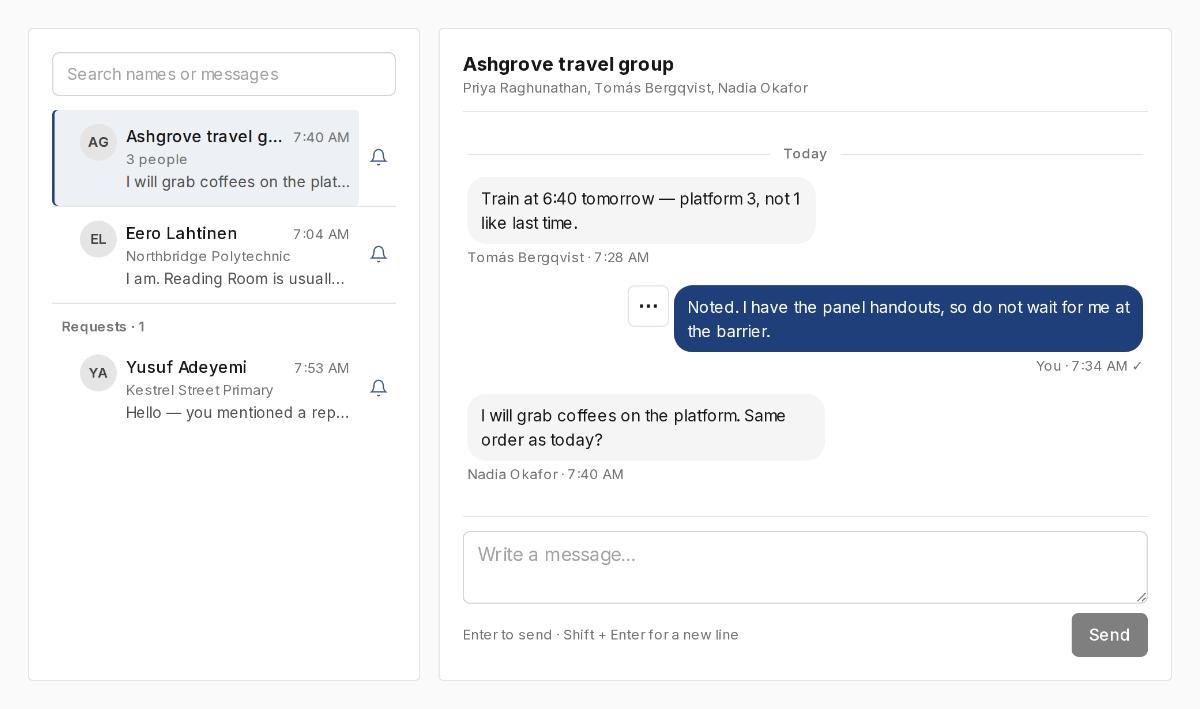
Attendees open Messages and compose to one person. Threads live in the same inbox as group chats. Profile holds Who can message me, read receipts, and an optional unread-email digest. Organizers use the same inbox; the thread menu can report a conversation.

Good to know

On by default and included on every plan. The Messages tab appears if Direct messages or Group chats is on. Turning it off hides one-to-one threads; existing conversations stay and return if you turn it back on. Directory opt-out blocks new DMs even when this toggle is on.

Message requests

What it does

When this is on, a first message from someone new arrives as a request instead of an open thread. The sender may send one message (up to 1,000 characters); further sends wait until the recipient replies, which accepts the request. New conversation starts are capped at 10 per day and 25 per event. Organizers skip the gate and land in an open thread.

The experience

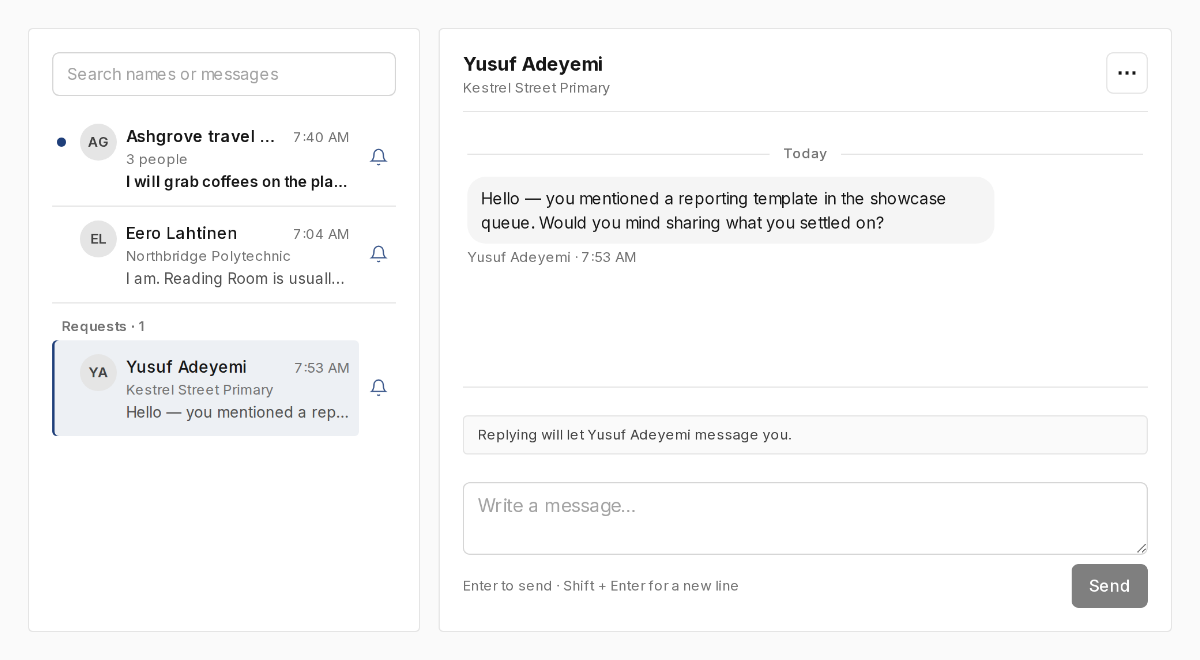
Attendees see a Requests section under the main inbox, with a banner that replying will let the person message them. The sender sees Waiting for a reply. Empty incoming requests are hidden from the recipient until a first message exists.

Good to know

On by default and included on every plan. It only applies to new direct conversations, so Direct messages must also be on. Turning it off does not delete existing requests; new DMs open immediately. No notifications fire while a thread is still a request.

Group chats

What it does

Group chats are private conversations an attendee creates with a name and at least one other roster member. The creator is added automatically. There is no coded size cap beyond that minimum. The same 60-messages-per-minute limit as direct messages applies.

The experience

Attendees open Messages and switch the composer to Group when both group and direct messages are on. The thread header lists member names. Organizers have no separate group-admin screen — they participate as members.

Good to know

On by default and included on every plan. Turning it off hides group threads; existing groups are preserved. The Messages tab stays if Direct messages is still on.

Sessions

Session Q&A

What it does

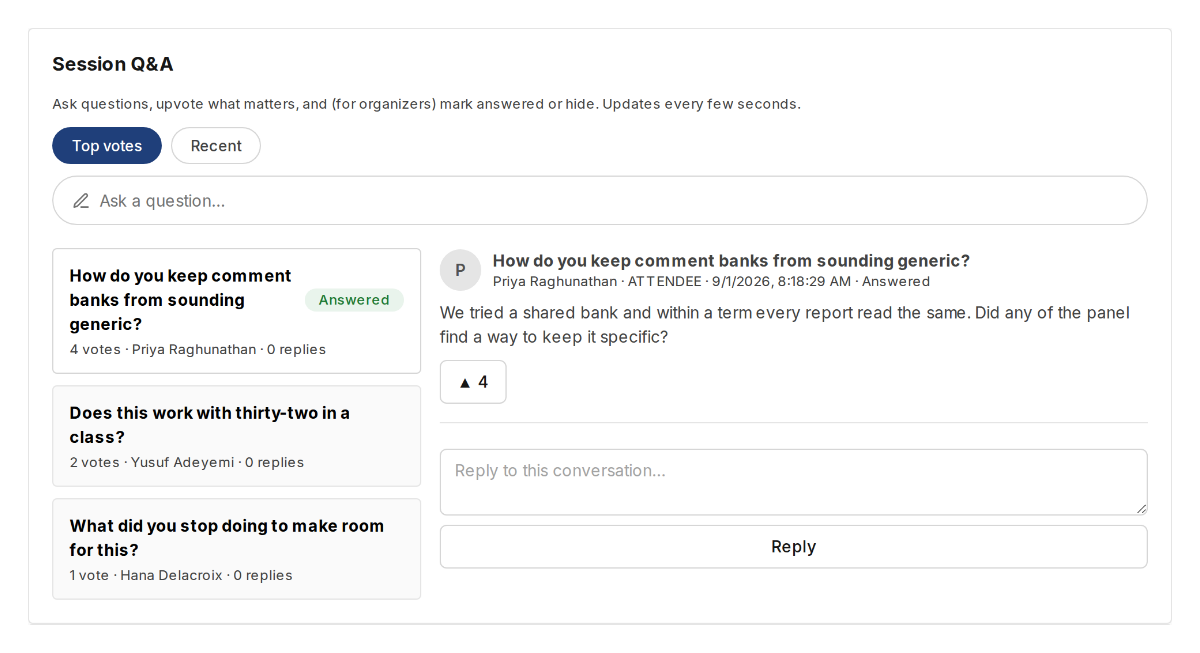
Session Q&A is a threaded question list on each session, with a title, body, and an optional audience of everyone or the presenters. Attendees can upvote; organizers can mark a thread answered or hide it. Hidden threads stay visible to organizers. Creating a thread awards engagement points.

The experience

Attendees reach it from a Q&A action on an agenda card, then work on the session page. They can sort by recent or votes and choose For the presenter when the question should go to speakers. Organizers see hidden threads and the answered/hide controls on the same page.

Good to know

On by default and included on every plan. The Talk showcase preset turns it off. Turning it off hides the agenda Q&A action; existing threads are preserved.

Likes on sessions

What it does

Likes let attendees mark public interest in a session. The count is visible on the session. Liking is idempotent and awards points once. Stars (bookmarks) are a separate personal reminder and are not controlled by this toggle.

The experience

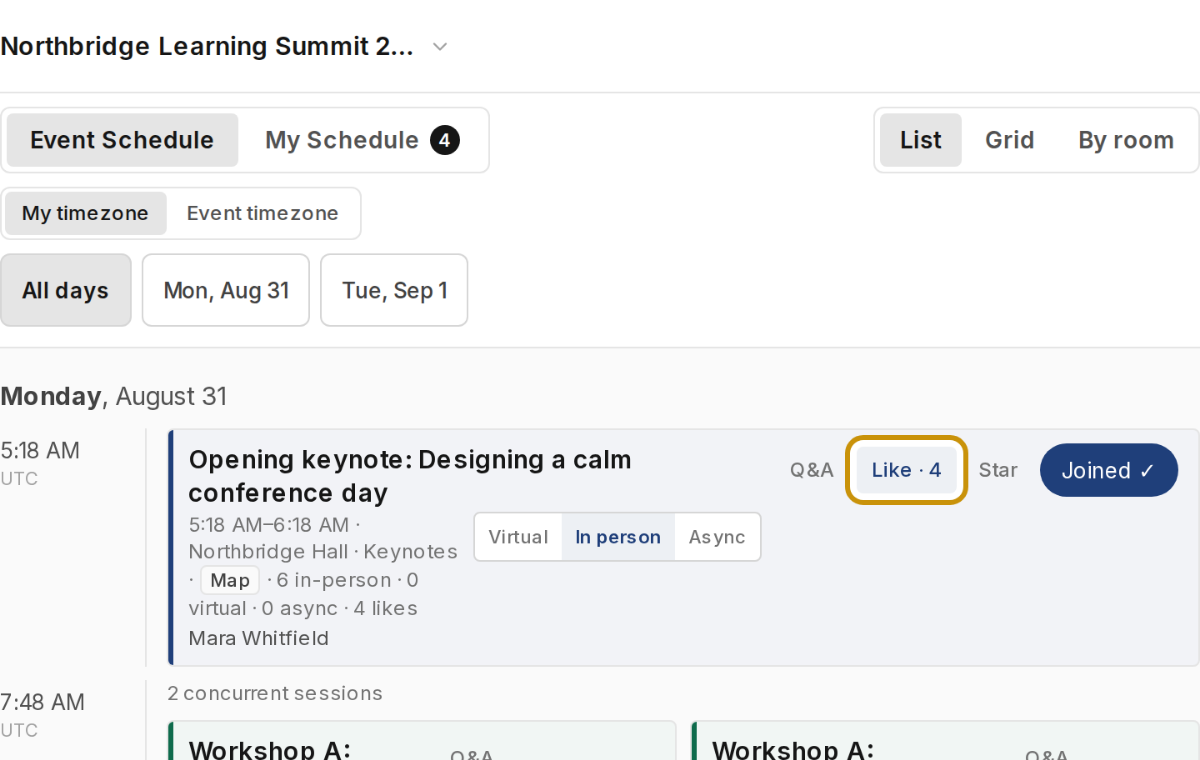
Attendees see a like control and count on agenda rows when the feature is on. The session page also shows a like button. Organizers can see aggregate counts on admin agenda rows.

Good to know

On by default and included on every plan. The Focused preset turns likes off. Turning it off hides the control; existing like counts stay on the session.

Event assistant

What it does

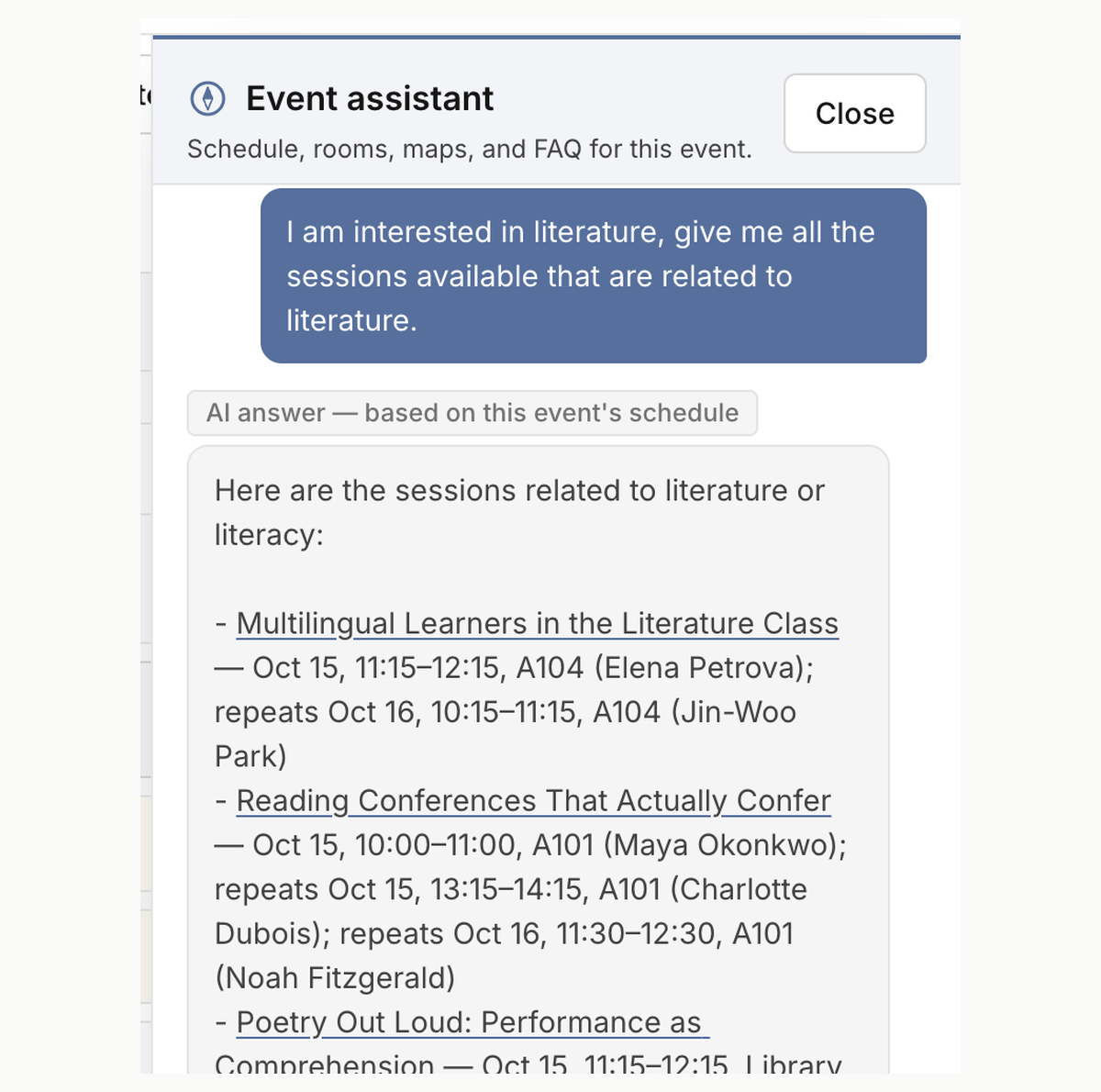
The Event assistant answers only from this event’s published schedule, rooms, maps, FAQ, and the in-app guide. It will not invent venues or sessions. Actions that change someone’s agenda (join, leave, export, waitlist, propose a meeting) ask the attendee to confirm first. Turns are rate-limited, and each plan has a per-event message cap.

The experience

Attendees open it from the floating Event assistant control on the dashboard and session pages. Answers are labeled as based on this event’s schedule. Organizers edit FAQ and up to three starter questions on the Features tab, under the toggles.

Good to know

On by default and granted on every plan; Free is capped at 50 assistant messages per event (paid plans are higher). The Focused preset turns it off. Turning it off hides the control; past assistant threads are kept. This is not the paid Speaker Readiness concierge service.

Waitlist visibility

What it does

Capacity and the waitlist always run when a session has a seat limit — this flag only controls how much of that list other attendees can see. When it is on, any attendee can read the ordered list with positions; when it is off, a non-organizer only sees their own row, without positions. Organizers always see the full roster, and joining a full session still tells the person their number in the join message.

The experience

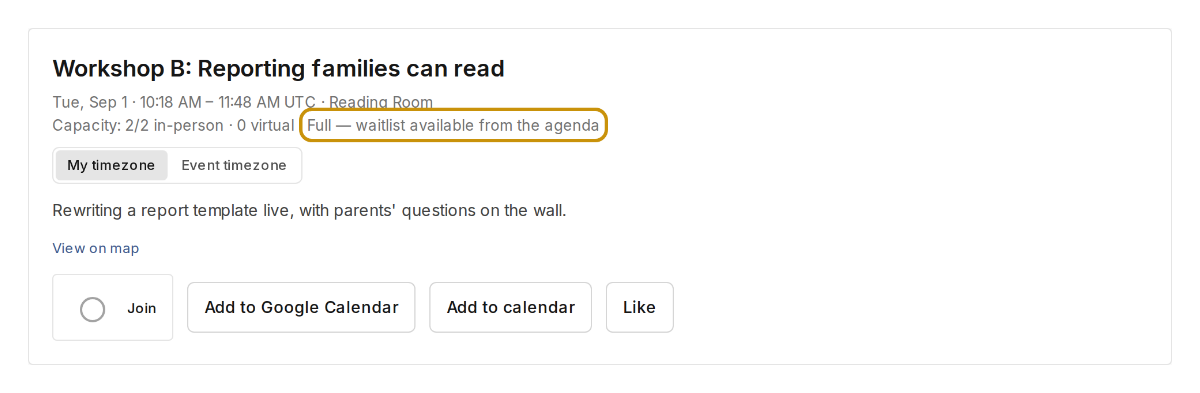
Attendees see Full — waitlist on agenda cards and join from the agenda (the session page points them there). Organizers manage promote and remove in the session’s Roster & waitlist drawer.

Good to know

On by default in the registry, but the plan entitlement is off on Free, Per-event, and Pro — only Enterprise and Internal grant it today. Waitlist seats still work when the flag is off. Turning it off does not delete waitlist rows.

Call for proposals

What it does

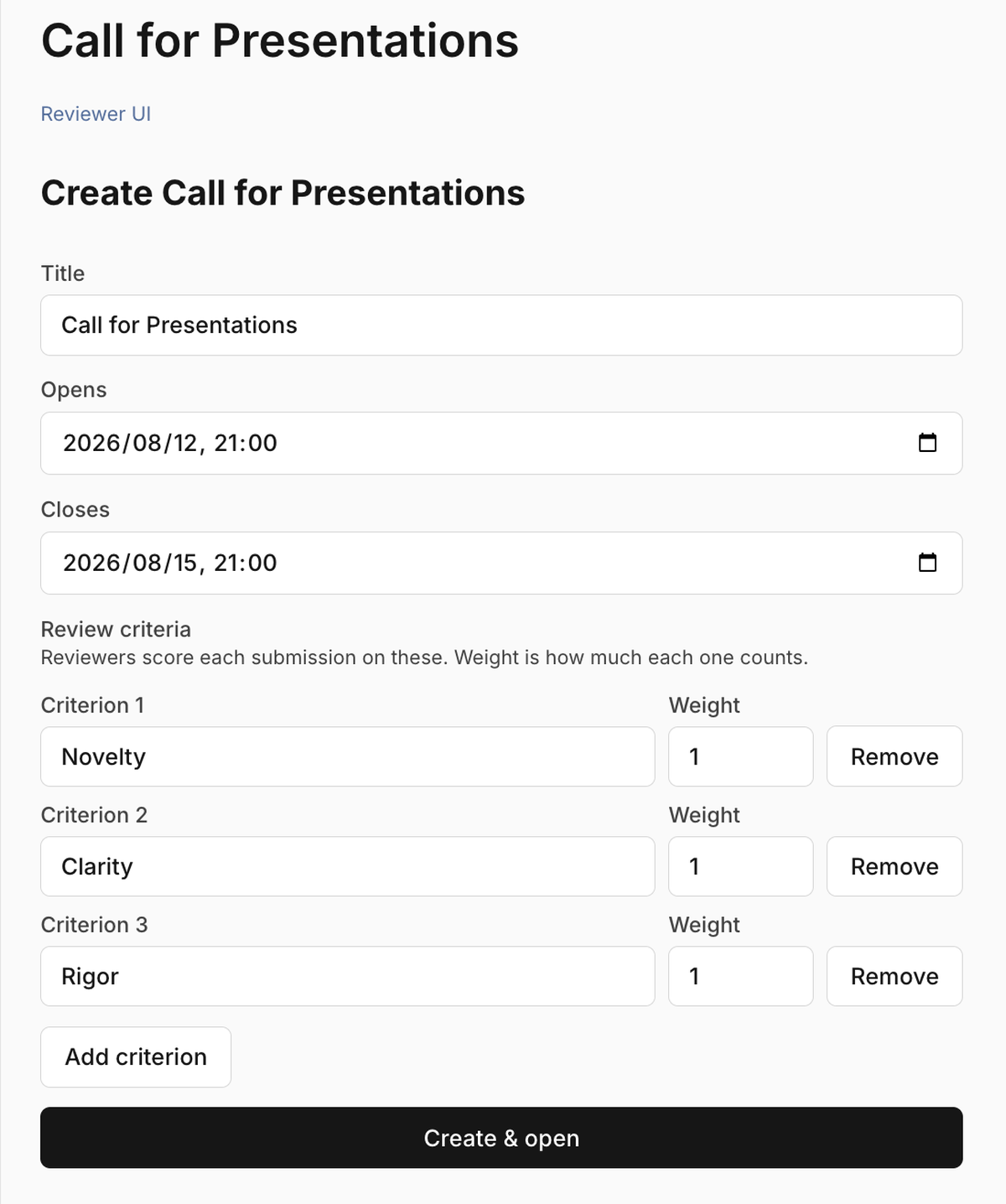
Call for proposals is a public form for papers, presentations, and workshops, plus a program-committee review workflow with an editor for the review criteria. Submitters do not need an account — they confirm by email — and forms can cap submissions per person, collect custom answers, and accept up to five attachments (10 MB each). Accepted work converts to draft sessions you schedule on purpose, and creating a form turns this override on.

The experience

The public page lives at /e/<slug>/cfp. Organizers use the console CFP area to open the call, assign reviewers, decide, and convert accepts. You can rename the call (the default label is Call for Presentations) in event settings.

Good to know

Off by default. The Academic preset turns it on. Organizer CFP tools stay available so you can build the call; the public form follows this toggle. Turning it off hides the public page; submissions and reviews stay.

Live polls

What it does

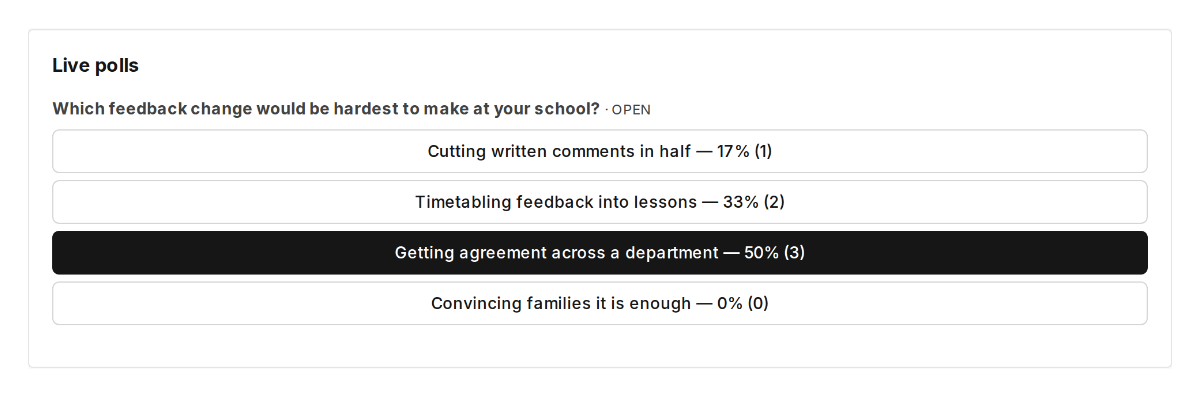
Live polls are multiple-choice questions attached to a session. Organizers create a draft with two to twelve options, then open and close it during the session. Attendees see only open or closed polls, not drafts. One vote per person; results show to attendees when you allow it, when the poll is closed, or if the viewer is an organizer.

The experience

Attendees vote on the Live polls card on the session page. Organizers use the same card to draft, open, and close. Nothing appears on the agenda list itself.

Good to know

On by default in the registry. Free plans do not include polls; Per-event and above do. Focused and Talk showcase turn them off. Turning it off hides the card; existing polls stay.

Session feedback

What it does

After a session’s end time, attendees can leave a 1–5 rating and an optional comment (up to 4,000 characters). One response per person per session; submitting again replaces the comment. Organizers get a count, average, histogram, and comments. The post-event recap can use this feedback when both features are on.

The experience

Attendees see a Session feedback card on the session page only after the session has ended. Organizers see the same form plus the summary line. There is no pre-end rating.

Good to know

On by default in the registry. Free plans do not include it; Per-event and above do. Most presets leave it on (including Focused and Talk showcase). Turning it off hides the card; submitted ratings stay.

Speaker & Session Readiness

What it does

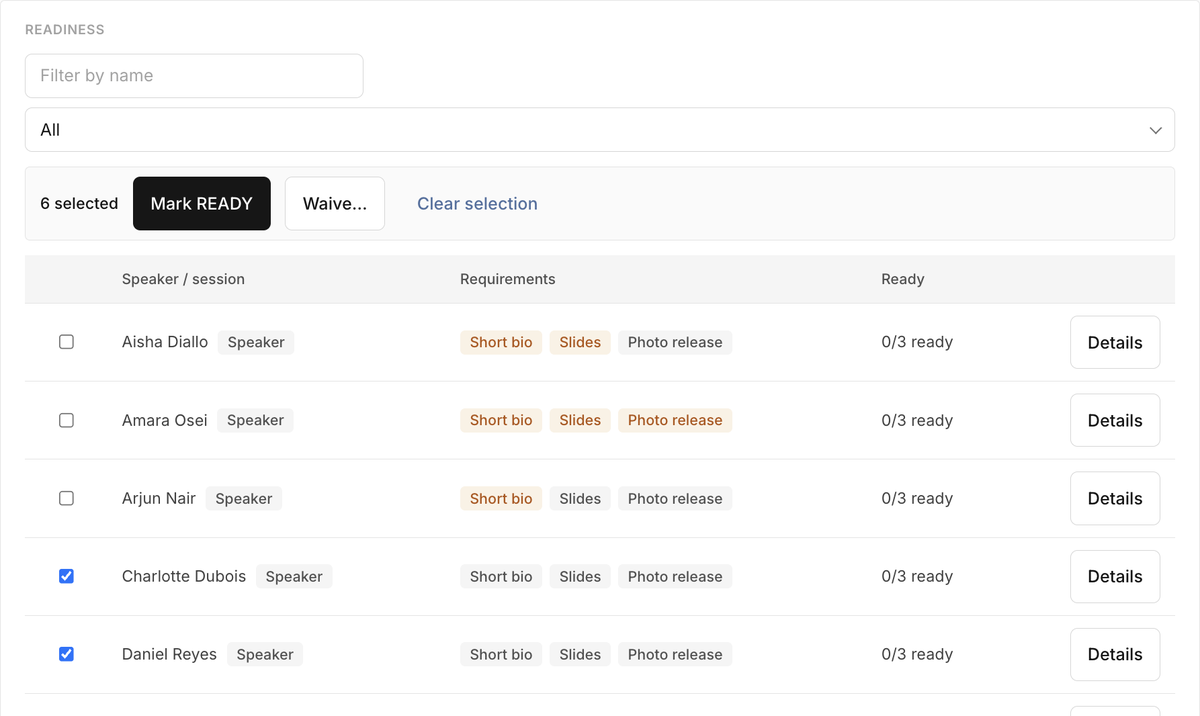
Speaker & Session Readiness tracks what each accepted speaker or session still needs — bios, slides, forms, agreements — as a template you assign once. Each presenter gets a personal link (no account): they upload a file up to 250 MB or paste a slides link. You approve or request a change. Automatic reminders are polite (7 days out, 2 days out, and once if overdue); portal links last 30 days.

The experience

Organizers get a Readiness tab on the event console once this is on (deep links still explain how to enable it when it is off). Presenters work on their personal link, not in the attendee app. The Speakers tab stays available either way.

Good to know

Off by default, and granted on every plan. Free is capped at 10 presenters per event; paid plans are unlimited. Turning it off 404s the Readiness API; templates, assignments, and uploads stay. This software feature is separate from the optional hands-on concierge service.

Engagement

Engagement points

What it does

Engagement points are a quiet lifetime total on the person’s account: likes, joins, resources, Community posts, and replies all add to it. The feature flag only controls whether the gem and count appear in the app chrome — awards still accrue when the flag is off. Points are not shown on other people’s directory cards.

The experience

When the feature is on, attendees see a small gem and count in the top bar, with quiet tiers from Quartz through Diamond. Organizers see engagement metrics on Analytics, not a public contest.

Good to know

On by default in the registry, but Free plans do not grant the entitlement — Per-event and above do. There is no public ranked list unless Public leaderboard ships later. Turning the display off does not erase points.

Public leaderboard

Planned — not shown in the app yet.

What it does

Public leaderboard is meant to rank attendees by engagement points. No list UI or API exists yet, so the toggle is hidden from the Features tab. It depends on Engagement points and is forced off if points are off.

The experience

Attendees see nothing. Organizer Analytics copy states there is no public leaderboard unless this ships.

Good to know

Planned for a later phase, default off. Only Enterprise and Internal entitlements include it today. Do not promise a ranked contest to attendees.

Daily digest

What it does

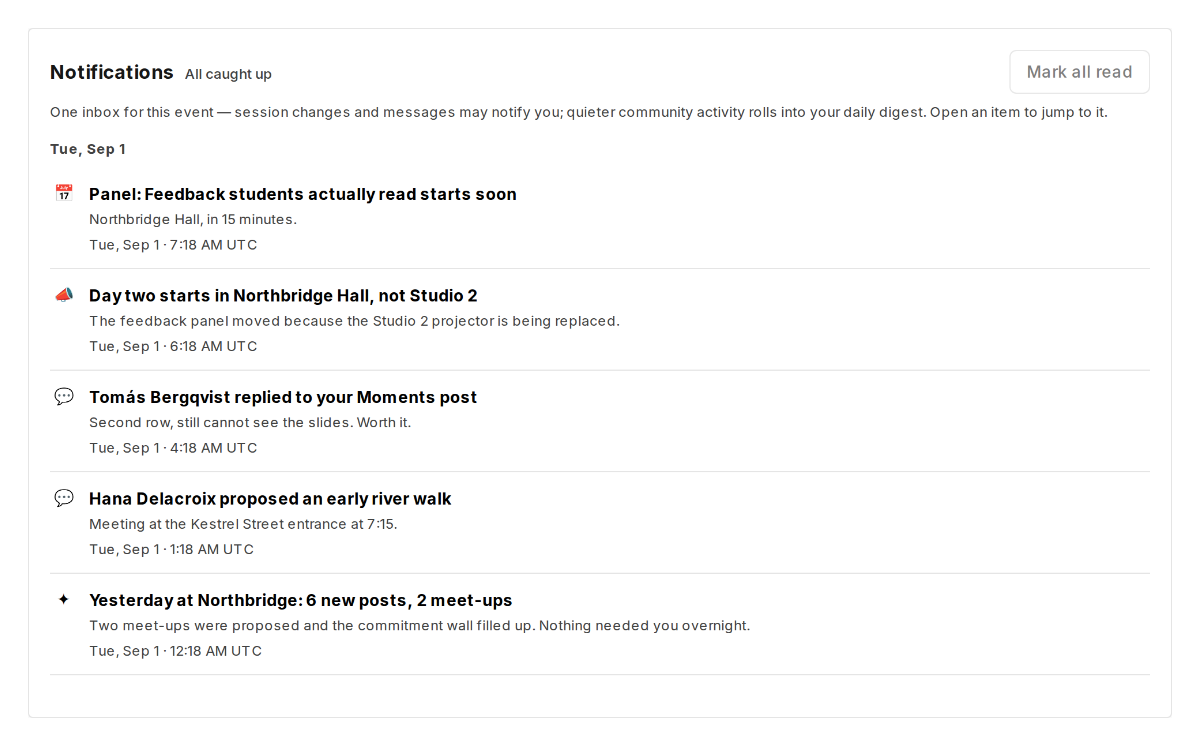
Daily digest bundles quieter community activity into a morning rollup instead of interrupting. The rollup runs after each attendee’s digest time (default 7:30 in their timezone) and emails only if they opted into digest email. Interrupt notifications still honor quiet hours (default 10pm–7am) and a daily push budget. The Features tab is an on/off switch; presets may store daily, weekly, or interrupts-only, but delivery currently treats any non-off value as on.

The experience

There is no digest tab. Attendees read items in Notifications and, if they opted in, in email. Organizers flip the switch on the Features tab under Engagement.

Good to know

On by default in the registry, with a stored default of daily. Free and Per-event plans do not grant the entitlement; Pro and above do. Focused, PD day, and Talk showcase store interrupts-only. Turning it off skips the morning rollup; existing notifications stay.

Sponsors

What it does

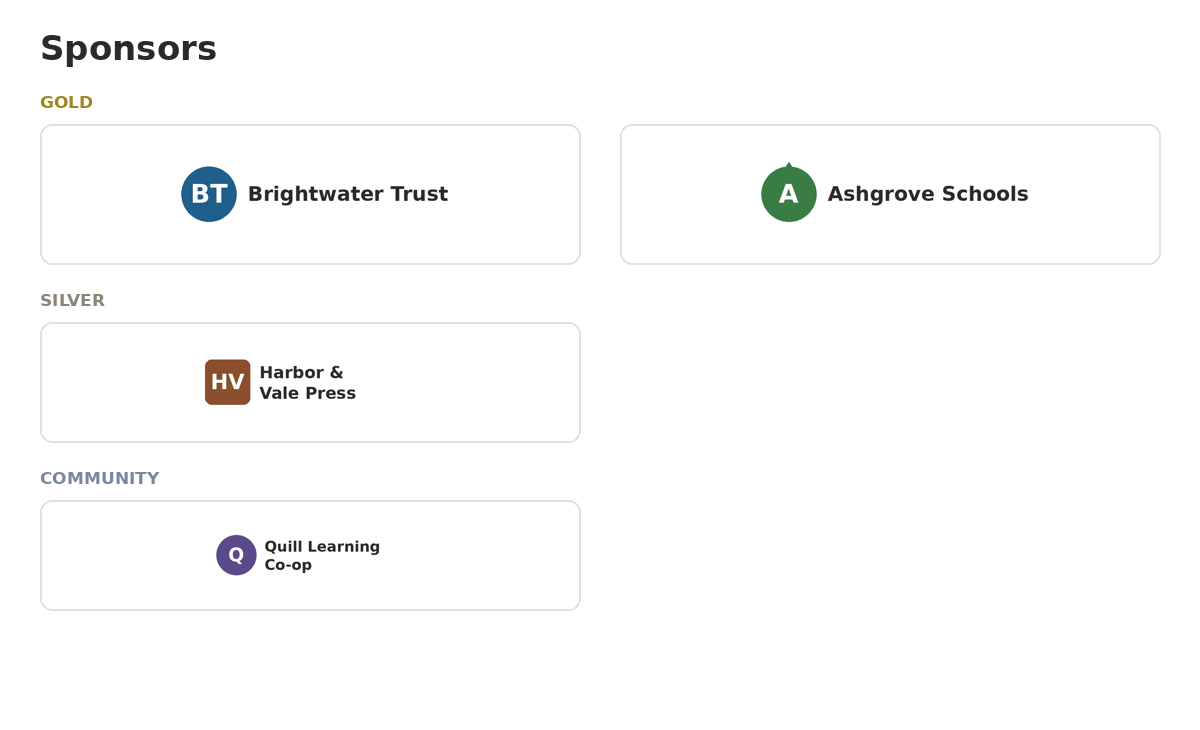
Sponsors are logos grouped by tier, shown on attendee surfaces, with optional exhibitor lead capture (name, email, company, notes). Organizers create and sort sponsors and can export booth leads as CSV. The public event payload can include sponsors when the feature is on.

The experience

Attendees see a sponsor strip on the Agenda tab, grouped by tier. Organizers manage the list on the console Sponsors page (logos, booths, descriptions, leads).

Good to know

On by default in the registry. Free plans do not include sponsors; Per-event and above do. Focused and PD day turn the strip off. Turning it off hides logos; sponsor rows and leads stay.

QR check-in

What it does

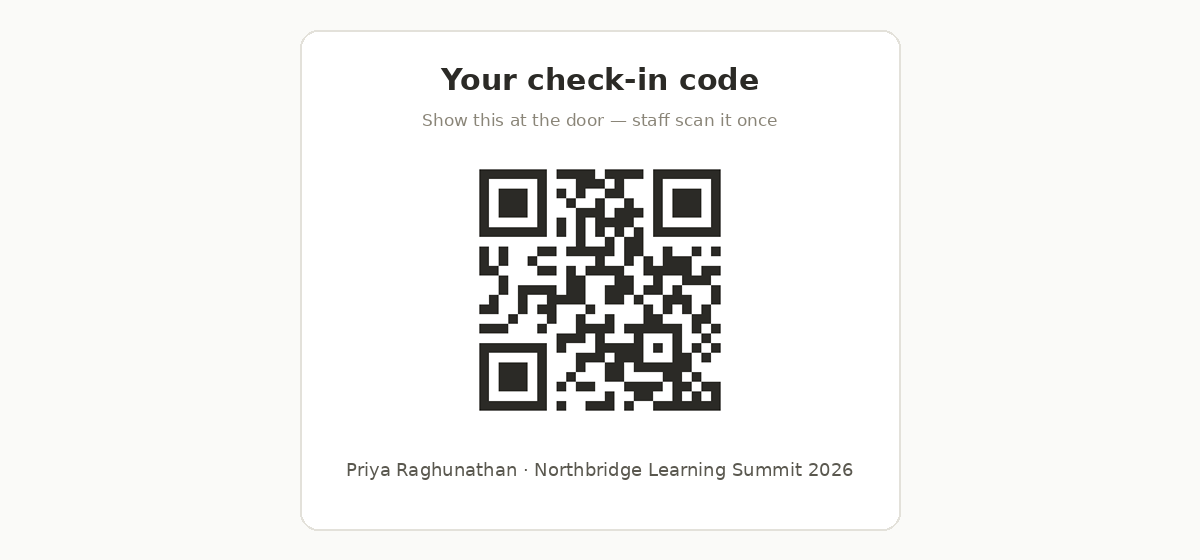
QR check-in gives each attendee a personal code on their membership. Staff can scan at the door (including offline, with sync when the device is back online). A person can be checked in once per event; repeats are idempotent. Methods include self, staff scan, and QR scan.

The experience

Attendees find their code at the top of Profile. Organizers open the Check-in scanner page in the console. Analytics can show a check-in rate when the plan includes analytics.

Good to know

On by default in the registry. Free plans do not include check-in; Per-event and above do. Turning it off hides the Profile code and scanner calls; existing check-in records stay.

Ops Inbox

What it does

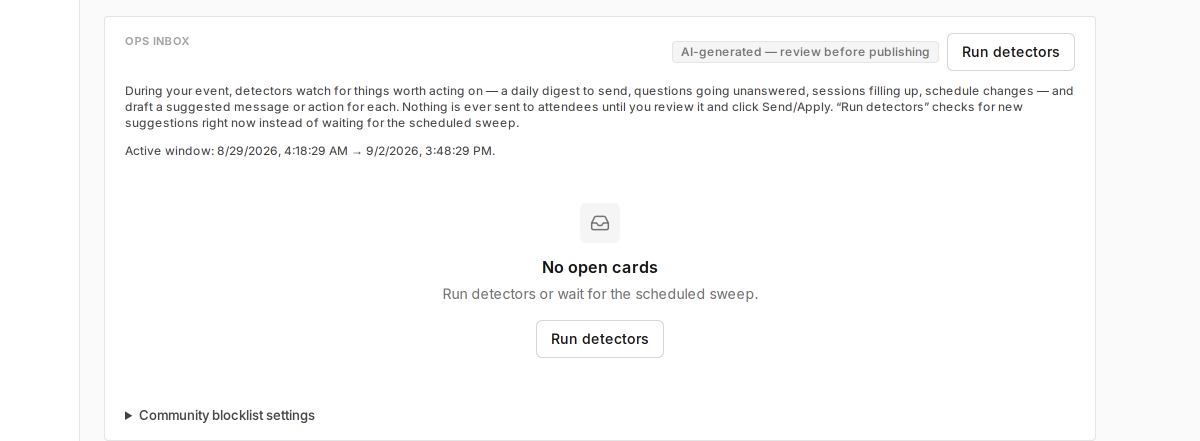
Ops Inbox watches the event and drafts cards for you — session changes, stale Q&A, low check-in, capacity pressure, a community blocklist hit, and a daily digest card. Nothing sends until an organizer applies or dismisses a card. Detectors run from 48 hours before start through 24 hours after the end.

The experience

Organizers open the Ops Inbox tab on the event console. Attendees never see this surface. You can edit the community blocklist from the same inbox.

Good to know

On by default in the registry. Free and Per-event plans do not include it; Pro and above do. The Focused preset turns it off. Turning it off stops new detections; existing cards stay.

Post-event recap

What it does

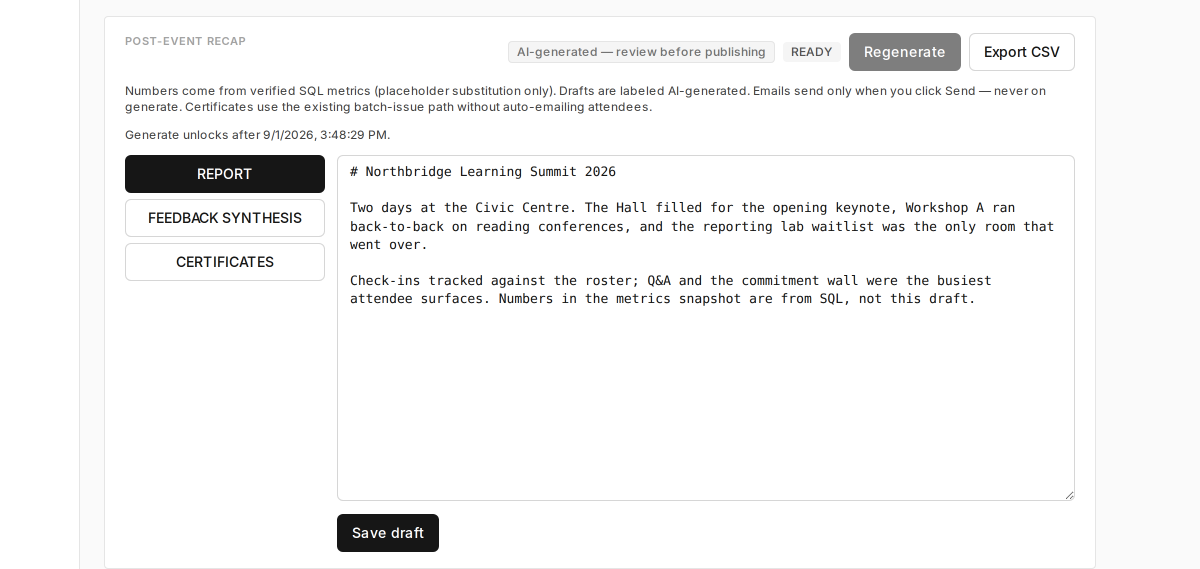
Post-event recap builds a report after the event end date: synthesized sections, thank-you email drafts, and a metrics export. It can also draft certificate work when Certificates is on. Generate is blocked until the event has ended. Free and Per-event orgs are asked to upgrade at the API.

The experience

Organizers open the Recap tab after the event. Attendees do not see the report builder. Load will explain an upgrade if the plan does not include recap.

Good to know

On by default in the registry. Pro and above include it. The Focused preset turns it off. Turning it off 404s generate; a recap you already built stays stored.

Certificates

What it does

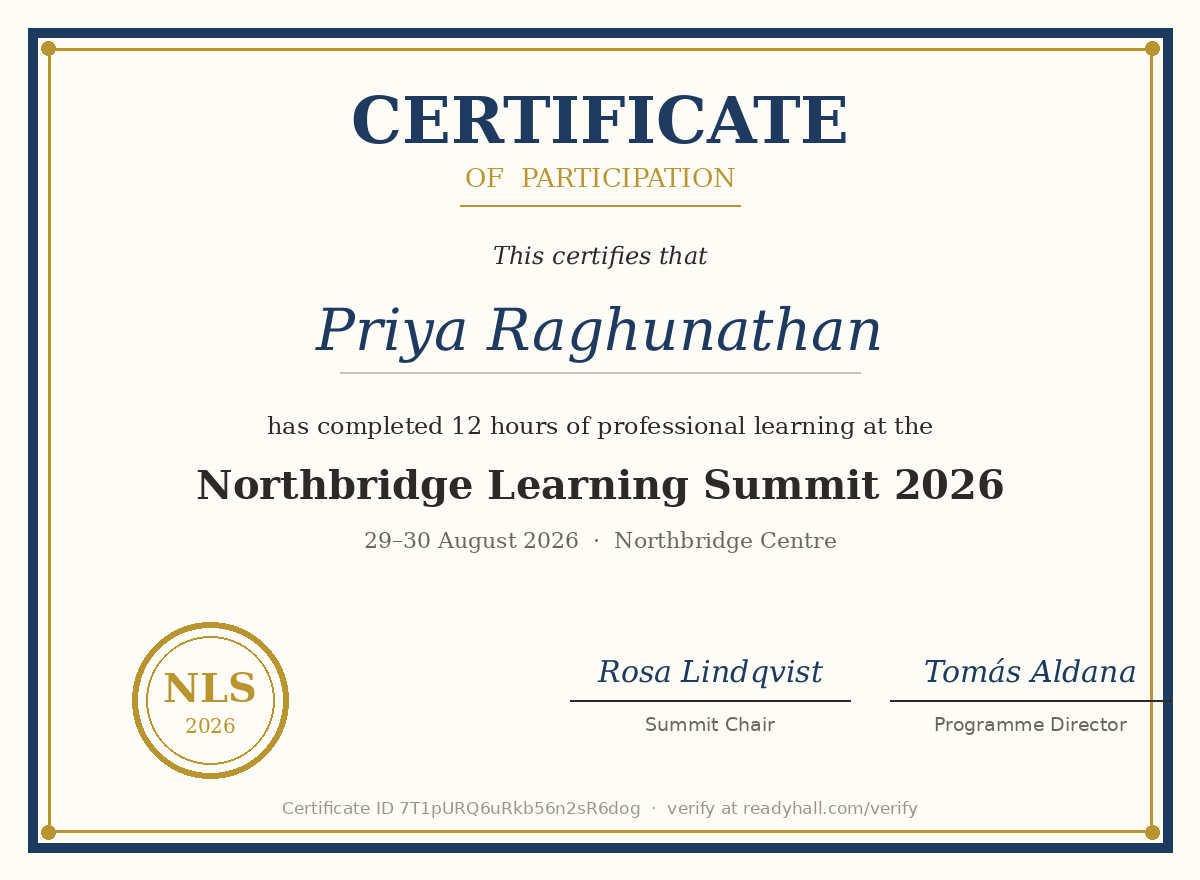
Certificates let you define templates and issue downloads to eligible attendees after the event ends. A template uses either the built-in layout, which we compose with the event accent colour and logo, or your own finished design — you upload a PNG or JPG, a Canva export say, and we place each attendee's name on it. Eligibility can be any check-in, a minimum number of joined sessions, or a required-session list (joins, not door scans). Batch issue runs in the background, and issued certificates can be verified on a public route.

The experience

Organizers design templates on the Certificates tab and issue from Recap. Attendees download after the event via the certificates API (there is no separate attendee Certificates tab). Eligible people get a file, not a live editor.

Good to know

On by default in the registry, but Free plans do not include certificates; Per-event and above do. Focused turns them off; PD day and Academic leave them on. Turning it off blocks new downloads; issued certificates stay. On an uploaded design the attendee's name is the only field we overlay — dates, hours and signatures belong in the design itself.

Schedule

Timezone toggle

What it does

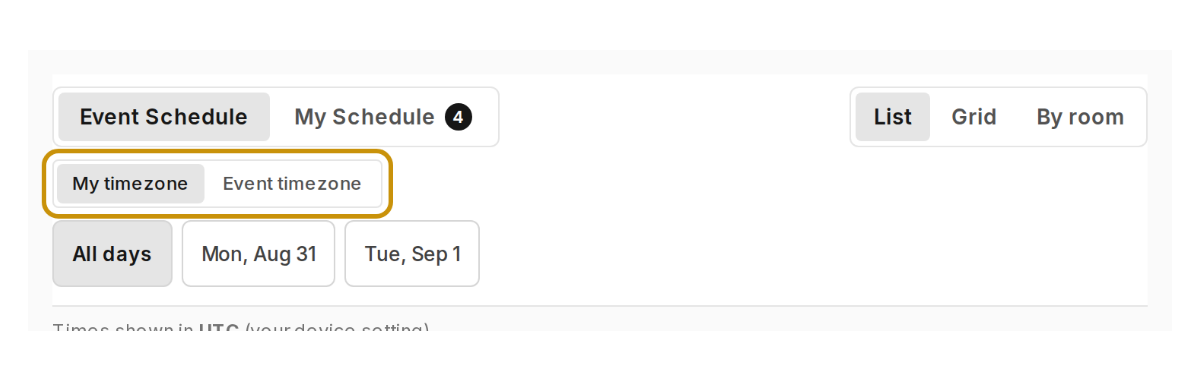
The timezone toggle lets attendees switch Agenda times between their local zone and the event timezone. When it is off, Agenda is locked to the event timezone. The Agenda always states which zone is showing.

The experience

On the Agenda tab, a My timezone / Event timezone control sits in the filter rail (and the desktop context bar). Session pages currently still show their own timezone switch even when this event flag is off.

Good to know

On by default and included on every plan. The PD day and Talk showcase presets turn it off so a single-building day stays in event time. Turning it off removes the Agenda toggle immediately.

Pick-one breakouts

What it does

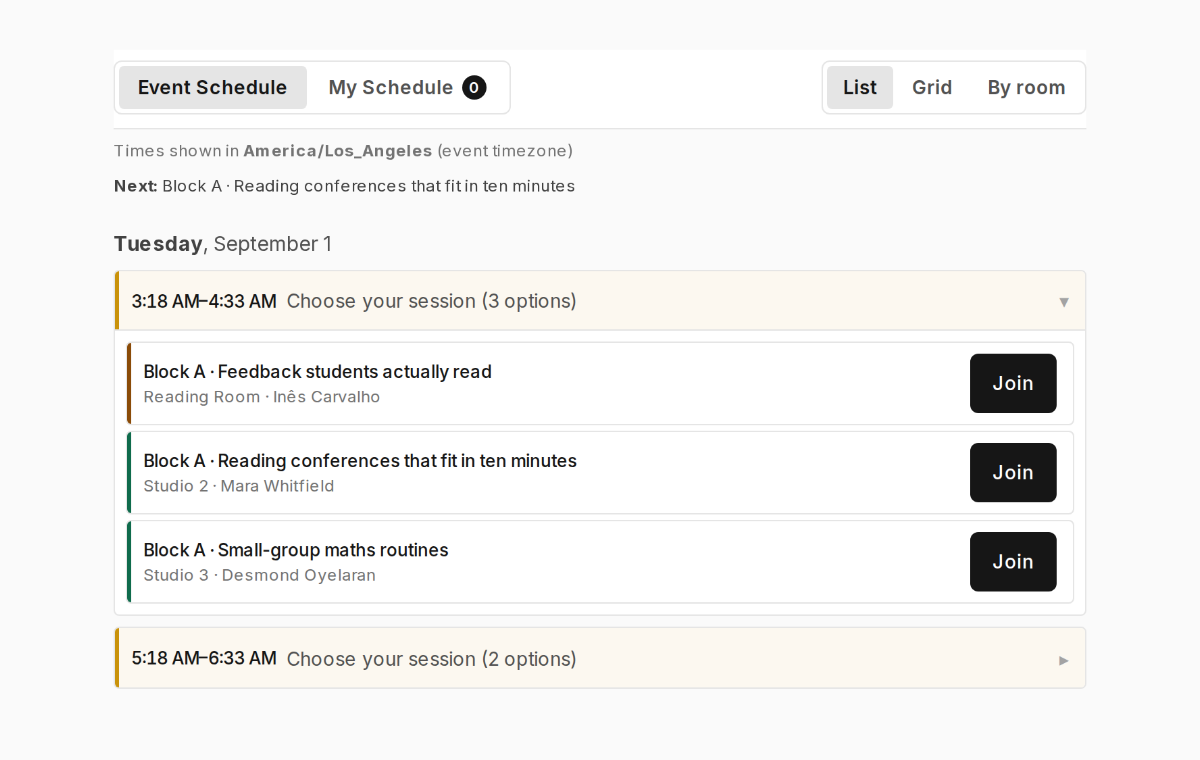
Pick-one breakouts changes the Event Schedule list into a slot-by-slot chooser: attendees pick one session per timeslot. Choosing a different session in a filled slot asks them to confirm the swap. Grid and room views stay as a normal timetable. Single-session slots render as ordinary rows.

The experience

Attendees see an accordion chooser on Event Schedule (list layout) with a Change action to reopen a decided slot. Full — waitlist chips stay factual. Organizers edit sessions as usual; ingest can suggest this shape for a PD-style program.

Good to know

Off by default, and it is not plan-gated — any organizer can turn it on. The PD day preset turns it on; Talk showcase leaves it off. Turning it off returns the card-wall list with no leftover chooser state.

Venue maps

What it does

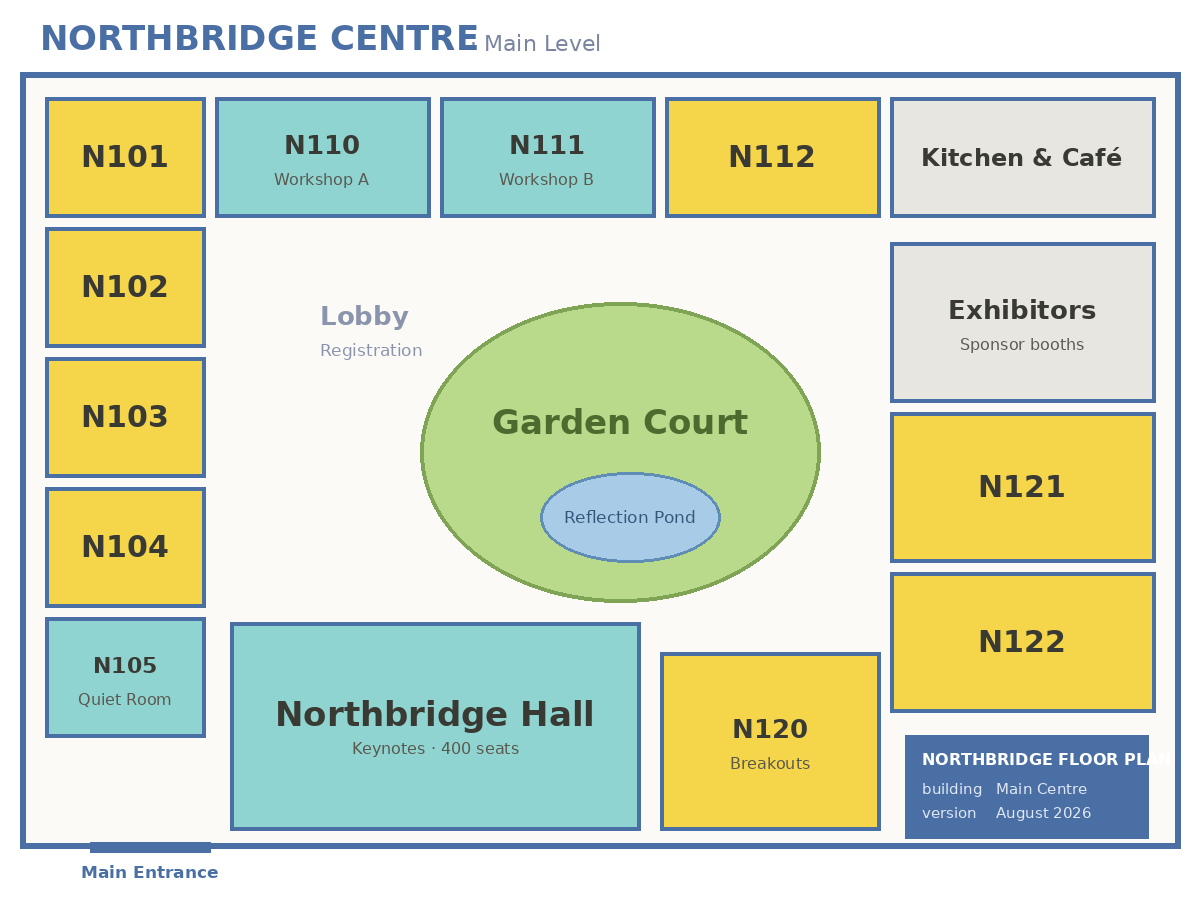
Venue maps are annotated floor-plan images with pins placed by percentage so they stay put when the map scales. A pin can link to a room; today’s sessions in that room appear on the pin. Uploads accept jpeg, png, webp, or gif up to 8 MB. You can have several maps (floors or buildings).

The experience

Attendees open the Maps tab and tap pins; session pages can offer View on map when a pin exists. Organizers edit maps on the console Maps tab — upload a plan, drop pins, and link rooms.

Good to know

On by default and included on every plan. The Focused preset turns maps off. Turning it off hides the attendee Maps tab; uploaded floor plans and pins are preserved.

Directory

Attendee directory

What it does

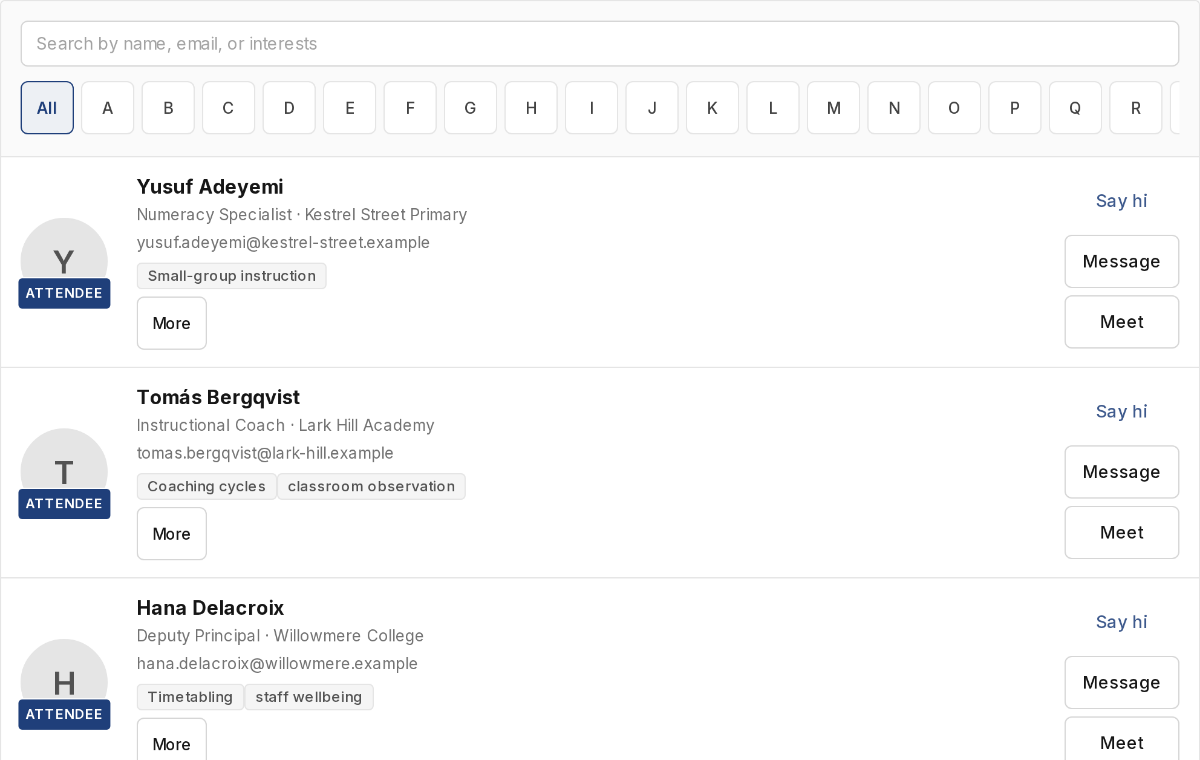
The attendee directory is a searchable list of people at the event. Listing is opt-in: new members are hidden until they turn on Show me in this event’s attendee directory. Organizers always see the full roster. Two people must both be opted in before they can start a direct message.

The experience

Attendees open the Attendees tab to browse people who opted in, and they control visibility from Profile or the welcome flow. Organizers keep Participants for the full roster even when the attendee tab is hidden.

Good to know

On by default and included on every plan. Turning it off hides the Attendees tab immediately; opt-in flags are preserved. Matchmaker cannot run without the directory and is forced off if you turn this off.

Matchmaker

What it does

Matchmaker suggests people to meet from shared interests. It only runs for someone who opted into the directory and left Match me on (that personal switch defaults on). A batch keeps at most five suggestions and never sends a message — Draft intro only opens the composer. Batches run on join and on a weekly sweep from a week before the event through the end date.

The experience

Attendees get a Meet tab with suggestion cards and a match toggle (disabled until they appear in the directory). Organizers see the same tab if they attend; there is no separate match-admin screen.

Good to know

Off by default and it requires the attendee directory. Free plans do not include it; Per-event and above do. The Academic preset turns it on. Turning it off hides Meet; prior suggestions stay in history.